AI Se Thumbnail Kaise Banaye Aur YouTube Pe Zyada Clicks Kaise Laye?
Bas apna video idea describe karo, scene build karo, title aur style choose karo — AutoDraft AI minutes mein custom YouTube thumbnails generate karta hai.
No Photoshop. No complicated design software. Sirf idea aur ek prompt.
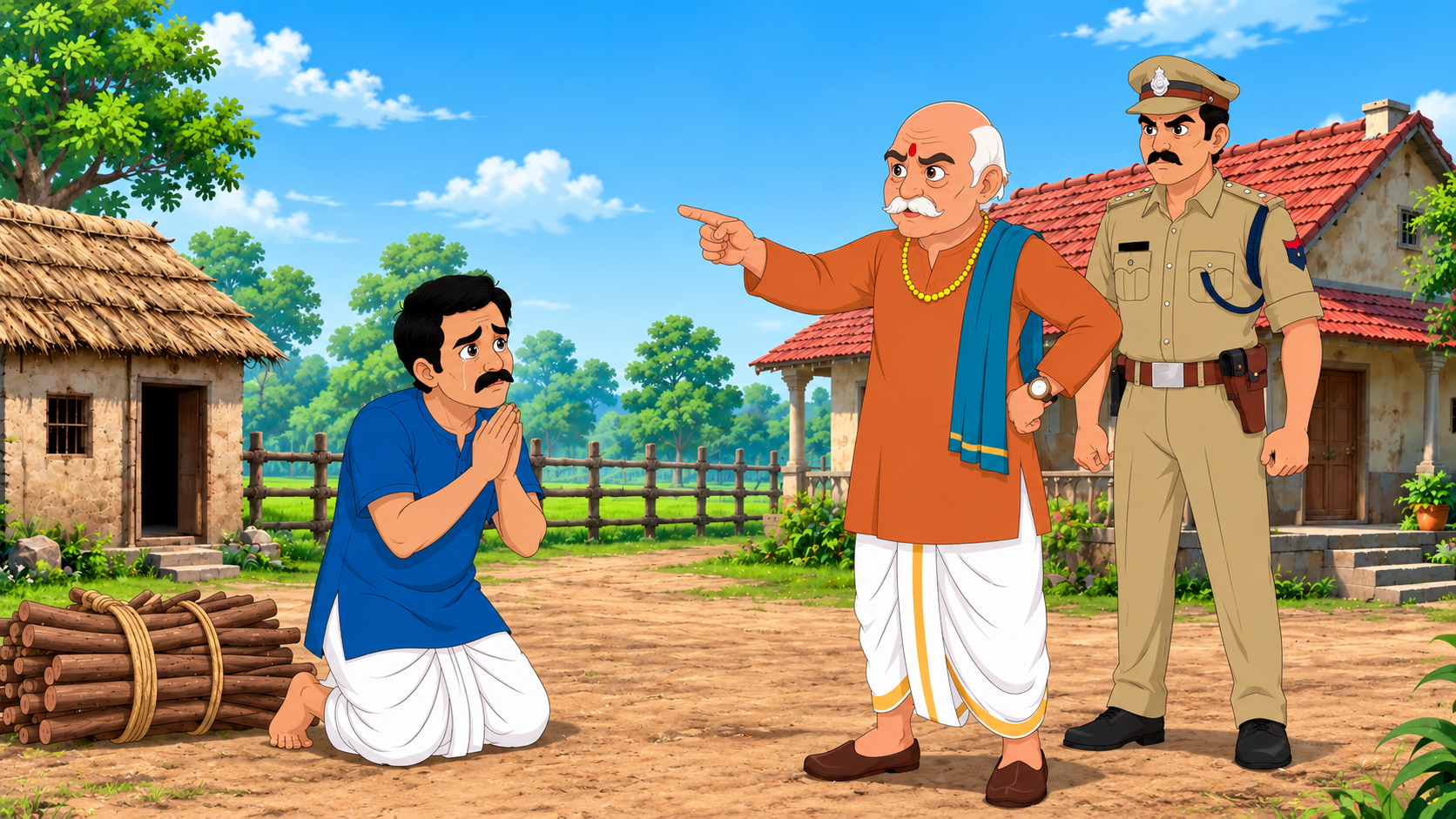
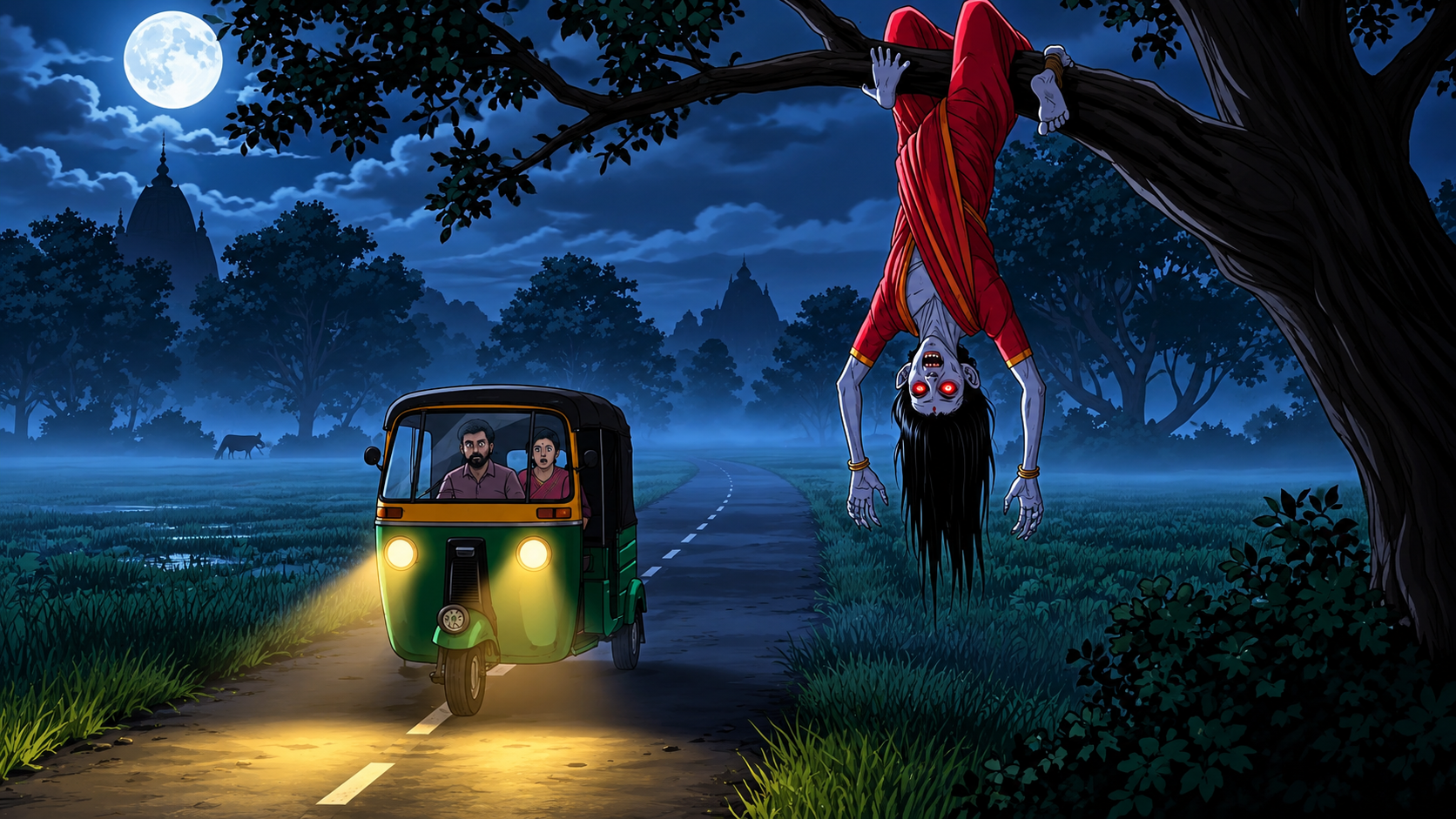
AutoDraft AI Ka YouTube Thumbnail Maker Kya Hai?
AutoDraft AI ka Thumbnail Maker ek smart, easy-to-use tool hai jisse creators custom YouTube thumbnails quickly generate kar sakte hain.
AI Thumbnail tab mein apna scene describe karo, thumbnail title add karo, theme ya style choose karo aur AI ko design generate karne do.
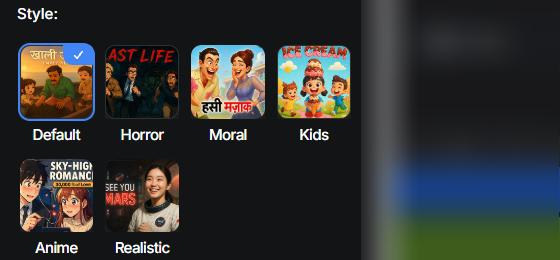
Cartoon, gaming, vlog, horror, kids content ya cinematic videos — apne video ke tone ke according thumbnail style choose kar sakte ho.
Recommended YouTube Thumbnail Dimensions
Thumbnail ko YouTube ke recommended format mein rakhna important hai, taaki different devices par properly display ho.
AutoDraft AI Se YouTube Thumbnail Kaise Banaye?
Photoshop ya graphic design skills ki zarurat nahi. Bas apna idea ready rakho aur ye simple steps follow karo.
AutoDraft AI Launch Karo
AutoDraft AI mein login karo aur New Project create karo. Editor open hone ke baad aap video, audio, images aur thumbnail workflow access kar sakte ho.
Thumbnail Ke Liye Scene Build Karo
Thumbnail ko video ke content ke saath visually relevant rakhne ke liye editor mein ek scene prepare karo.
- Background Assets ya Image Gen se background add karo.
- Characters aur props insert karo.
- Elements ko thumbnail composition ke according position karo.
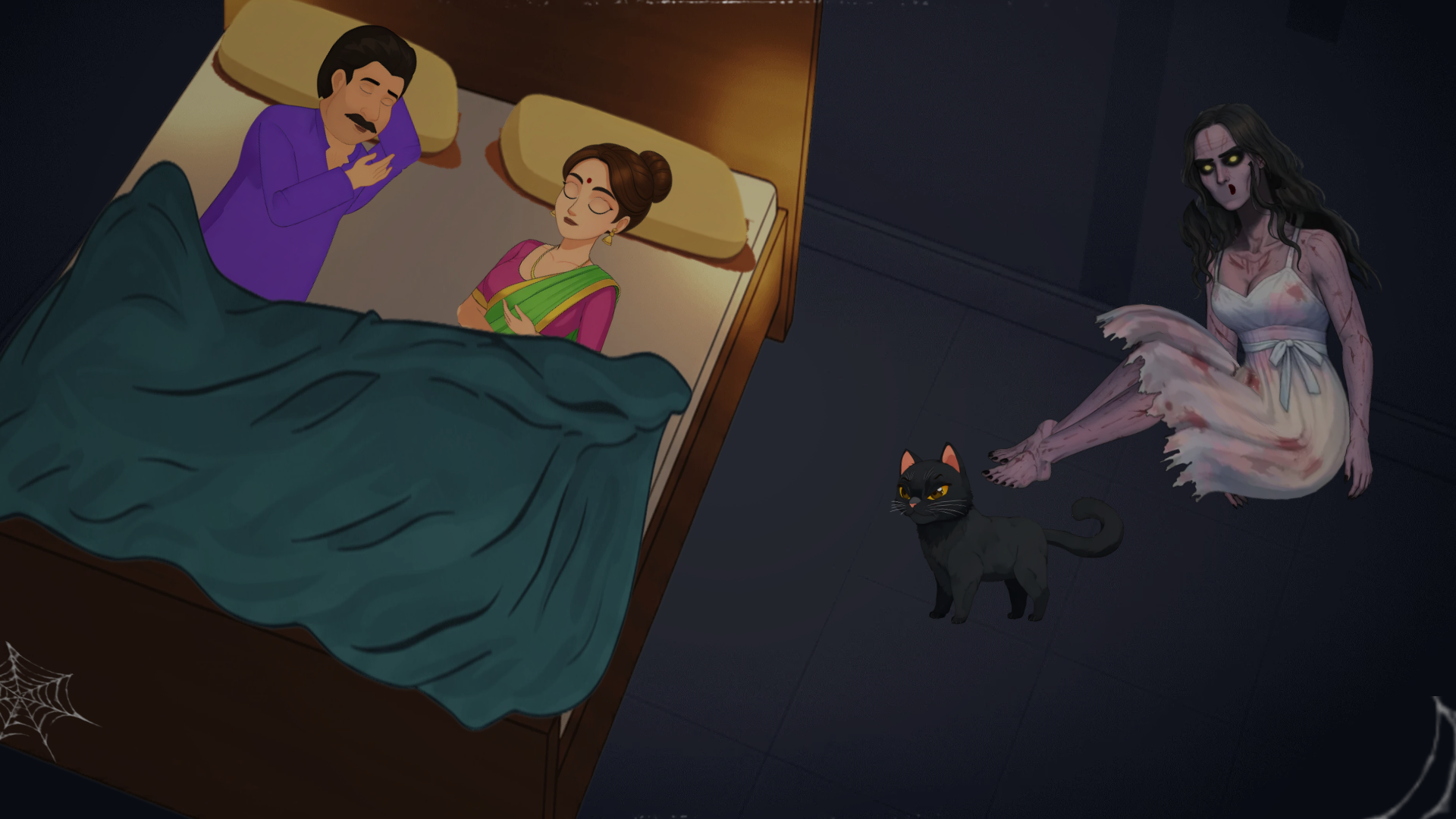
Frame Capture Karo
Left panel se AI Thumbnail option open karo. Agar timeline mein scene already ready hai, to Capture Frame use karke us frame ko visual reference bana sakte ho.
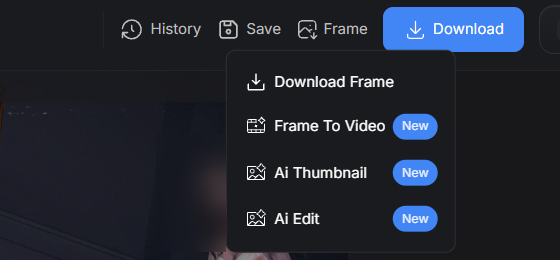
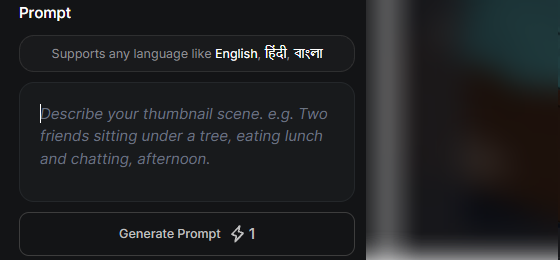
Thumbnail Scene & Title Describe Karo
Prompt box mein exactly batao ki thumbnail mein kya dikhna chahiye. Short, clear aur eye-catching description use karo.
Example: “Gamer boy screaming with neon lights in background.”
Stuck ho? Generate Prompt option se starting ideas le sakte ho.
Thumbnail Style Choose Karo
Apne video ke tone aur audience ke according style select karo. Different styles different visual moods create karte hain.
Thumbnail Generate & Download Karo
Generate Thumbnail par click karo. Result pasand nahi aaya to prompt, title ya style tweak karke multiple versions create kar sakte ho.
Final thumbnail ready hone ke baad download karke YouTube par upload karo.
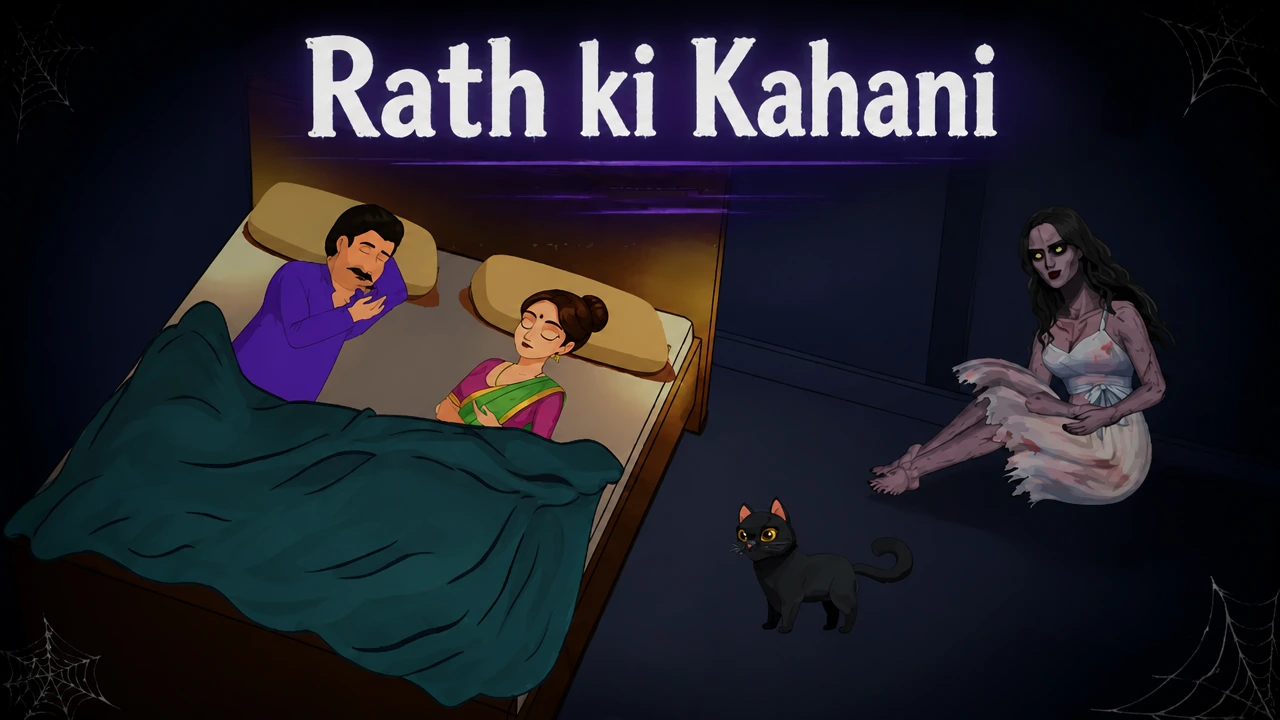
AI Se Different Thumbnail Ideas Try Karo
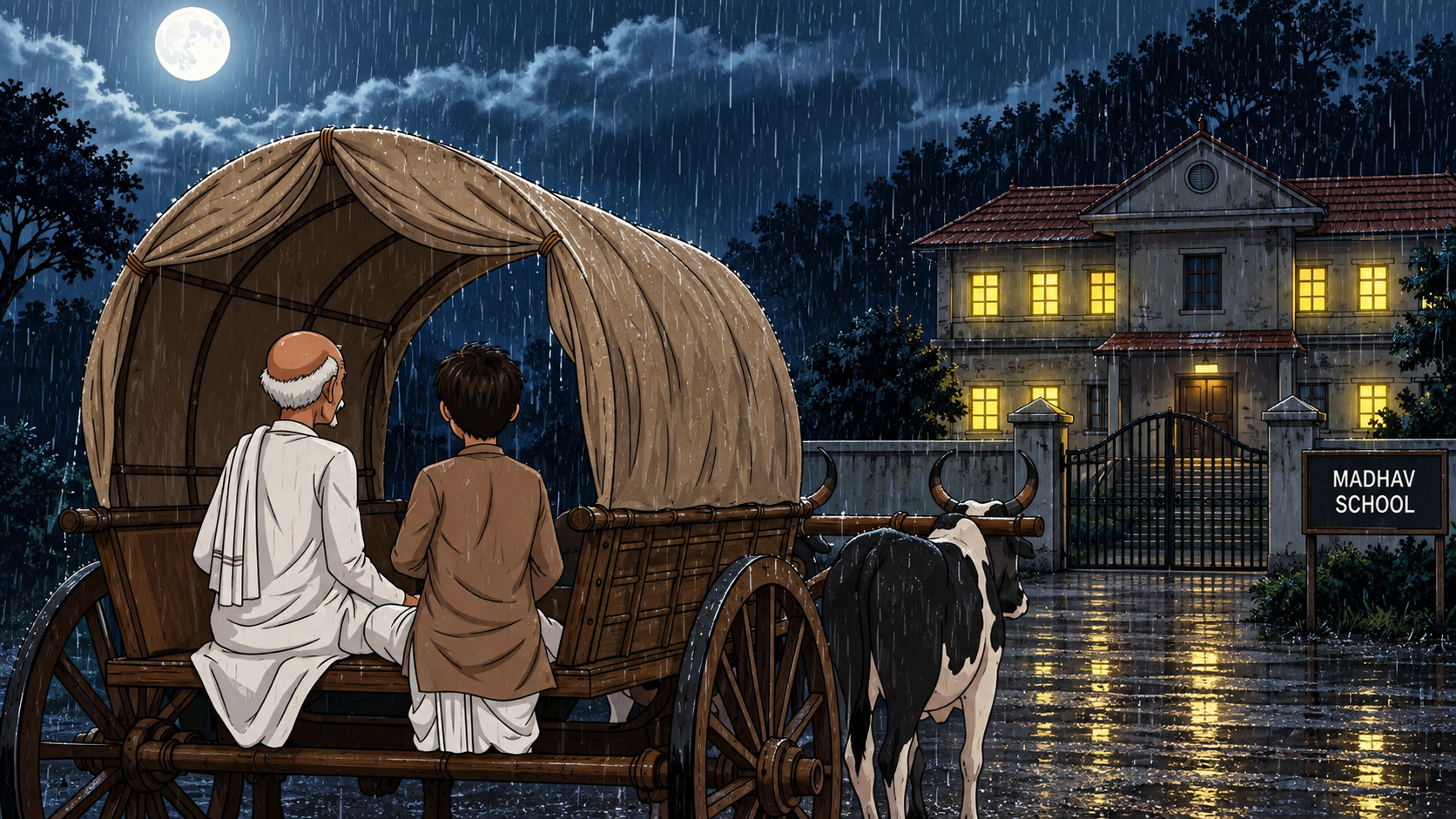
Ek hi workflow se different stories, moods aur visual styles ke liye thumbnails create kar sakte ho.
Thumbnail Prompt Kaise Likhein?
AI ko clear visual direction doge to generated thumbnail ko apne concept ke closer rakhna easier hota hai.
Subject Clear Rakho
Thumbnail mein main character ya object kya hai, directly batao.
Mood Describe Karo
Video ka emotion ya atmosphere mention karo — dramatic, funny, scary, exciting.
Composition Socho
Foreground, background, lighting aur important visual elements specify karo.
Har Video Ke Liye Thumbnail Style Choose Karo
Video ka genre aur audience dekhkar visual style select karo.
Balanced aur versatile look.
Bold lines aur expressive characters.
Vlogs aur cinematic content ke liye.
Dark, moody aur mysterious visuals.
Soft, colorful aur friendly visuals.
Thumbnail Pasand Nahi Aaya? Prompt Tweak Karo.
Ek hi idea ke multiple visual versions try karo. Scene, title, style ya composition change karke different thumbnails generate kar sakte ho.
Make Thumbnails That Stand Out.
Don’t waste time designing every thumbnail from scratch. Describe your idea, choose your style and create a YouTube-ready visual with AutoDraft AI.
Try AI Thumbnail Maker Free →